
Frequently Asked Questions
Version 8
The answers to many of the questions, issues, and problems that our customers have encountered can be found on this page. Please take the time to review this valuable resource before contacting support.
Downloading
StripLog, MudLog, HorizontalLog, and LogManager may be evaluated for 30 days before purchasing them. The evaluation uses Electronic Licensing to provide you with a one-time free trial period. Call the office to discuss if you qualify for a trial evaluation license.
Be sure to purchase your product before the evaluation period runs out to avoid an interruption in your ability to run it. If you wish to use a hardware key for your product, order at least one week before the evaluation ends.
Note that the WellSight LogViewer does not require a license and is available free of charge.
- Go to the Products page.
- Navigate to the download button for the desired product and click it.
- Complete the download form and click Download.
- Check your email for a message containing a Download link from WellSight and click the link.
- Save the download file on your Windows desktop.
- Locate the download file and double-click on it.
- A message will ask you if you want to install the program.
- Click Yes to install the program and follow the instructions. Click Next for any pages of the installation wizard about which you are unsure.
- If you are prompted to restart Windows, click Restart Later, finish running the installation wizard, then restart Windows from the Start button.
- After the program has been installed, you can safely delete the download file.
| Version 8 | This is the current version of StarLog. Download Version 8 for any of the following reasons:
|
| Version 6 | Your clients or partners have not yet upgraded to Version 8. Note that sales and support of Version 6 were discontinued January 1, 2019. |
| PRODUCT | USE OF THIS PRODUCT: |
| StripLog | Create strip logs for vertical or deviated wells. E.g. lithology logs, core logs, composite logs. Best suited for Canadian and International (non-U.S.) operations. |
| MudLog | Create strip logs for vertical or deviated wells. E.g. mud logs, core logs, composite logs. Best suited for U.S. drilling operations. |
| HorizontalLog | Create strip logs for horizontal wells and projects. |
| StarLog | This term refers to any or all of StripLog, MudLog, and HorizontalLog. It is used for describing aspects that all three products have in common (e.g. their printing capabilities). When you download StarLog, the download file contains and installs all three products by default. You can safely delete the desktop icons for the product(s) that you don’t use. |
| WellSight Log Viewer | View and print StarLog log files. |
| WellSight Log Manager | Search for, open, view, print, and plot any log file generated by any version of StarLog (e.g. 5.x, or 6.x). |
If you are having problems downloading:
- Clear your browser’s cache.
(Firefox, select Options > Privacy & Security > Cookies and Site Data > Manage Data)
(Chrome, select Settings > Privacy & Security > Cookies and Site Data > Clear Browsing Data > Cached Images and Files )
(Edge, select Settings > Privacy & Security > Clear Browsing Data > Cached Data and Files)
(Internet Explorer 11, select Internet Options > Browsing History > Delete > Temporary Internet files > Delete Files) - Close every window of your browser, restart your browser and try again.
- Try downloading a large file (greater than 10 MB) from another website. If you cannot then contact your Internet Service Provider.
- If the download starts but gets interrupted before it completes, try one of the download manager programs that allow you to resume an interrupted download. (e.g. McAfee).
Installing
StarLog programs and the LogManager can be used on Virtual Machines (VMs), but only when a hardware key is used. This applies to both stand-alone and network server installations. Network client installations can also be on VMs since they do not require a local license.
When launching your WellSight product, if you receive a message that a Virtual Machine has been detected, check the following:
- For a stand-alone installation, ensure that the black USB hardware key is connected and mapped to the VM.
- For a network server installation, ensure that the red USB network hardware key is connected and mapped to the VM.
- For a network client installation, ensure that the client can access the license server over the network.
The LogViewer also works in a VM as it does not require a license.
The only configuration that does not run in a VM is a stand-alone installation that tries to use an electronic license. To use an electronic license (including a free trial license) you must install your WellSight product directly on a real computer running a supported version of Windows.
WellSight programs automatically create shortcut icons on your desktop when you install them.
If your shortcut gets deleted you can restore it as follows:
- In the Control Panel, run Programs and Features.
- Select the entry for your product, e.g. WellSight StarLog Suite 8, and click Repair.
Note that starting in Windows 8 you can also pin WellSight programs to start screen.
WellSight distributes setup.exe installation programs that contain MSI database files. To extract the MSI file, simply install the product using the setup.exe. As part of the installation, the MSI file will be extracted to the default location for your version of Windows. E.g., for Windows 7, “C: > Users[user] > AppData > Local > Downloaded Installations”.
WellSight programs automatically configure Windows to launch the appropriate program when you double-click on a strip log file. This is done when you install the program by associating the log file name extension (e.g. .SL6, .HL8) with the program. However, this association can be changed on you, e.g., by other software being installed.
To re-establish the file name extension associations for a WellSight program:
- In the Control Panel, run Programs and Features.
- Select the WellSight program, e.g. “WellSight StarLog Suite 8”, and click Repair.
Sometimes the default associations are not what you want. For example, you may want your vertical log files to be opened by MudLog, but any horizontal log files should be opened by the WellSight LogViewer. To change the default file name extension associations:
- Right-click on a log file and select Open With > Choose Default Program.
- Select or Browse to the WellSight program file, e.g. “C: > Program Files (x86) > WellSight Systems > LogViewer 8 > Viewer.exe”.
- Check “Always Use the Selected Program” and click OK.
- Restart your computer.
- Login as a user with administrator privileges.
- Check the Programs and Features applet for any WellSight Systems entries and uninstall them.
- Download the installation program (e.g. starlog_800.exe) to your desktop and run it from there.
- Error 1722: There is a problem with this windows installer package.
- Error 1931. The Windows Installer server cannot update the system file C:… (some Windows file)
- “Unable to start hardlock service”
- Temporarily disable your anti-virus software and try installing again. Warning: your computer will be vulnerable to viruses until you re-enable your anti-virus software. You are advised to avoid using the Internet or disable your Internet connection while your anti-virus software is disabled.
- You can sometimes press Cancel and the installation will complete anyway. However, afterwards, you may not be able to run the WellSight program you just installed. Instead, you may receive a message telling you that the HASP driver is not installed. If this happens, you may be able to fix the problem by re-installing the HASP driver. See License Troubleshooting.
- The exact error message(s) displayed.
- When the error message(s) are displayed. E.g. during the download, during the installation, or when you run the program.
- The file size (in bytes) of the downloaded installation program.
- The exact, numerical Windows version number and Service Pack level (found under Control Panel > System).
A number of our customers have reported that they have successfully used our products on operating systems other than the supported versions of Windows. Techniques included:
- Dual-boot systems like Macs with more than one operating system installed.
- Windows Emulators.
- Virtual Machines, e.g. Parallels for Max OS X.
For StarLog programs, use a hardware key based license and configure the Windows emulator or VM to access its USB port.
Note: You cannot use an electronic license on virtual machines.
Licensing
- You have evaluated StripLog by downloading and running the free trial period, which uses an electronic license. Now you want to purchase StripLog and run it using a hardware key. Once your hardware key arrives, simply connect it to your computer and StripLog automatically finds the hardware key the next time it runs (or after your trial period ends).
- You use a hardware key for MudLog, but when you arrive at the well site you realize that you don’t have it with you. No problem. If you haven’t already used the free trial period on your computer, it will start automatically when you run MudLog without the hardware key present. If you have already used the free trial, contact WellSight to arrange an emergency electronic license to get you through the job.
- Ensure you have a black HASP SRM hardware key
- Connect your hardware key to a USB port on your computer
- Ensure the hardware key’s internal red light is lit. This could take a few seconds – up to a minute.
- When connecting a WellSight hardware key to your computer for the first time, you may see Windows messages informing you that new hardware has been detected. This is normal, unless you see a message that says the hardware could not be installed. In that case, re-install the HASP driver.
- If the hardware key’s red light does not come on, try a different USB port
- Ensure that the USB port works by testing it with another USB device (e.g. a memory stick)
- If the hardware key is connected to a USB hub, try using a port directly on your computer
- Run Renew License and watch for a message indicating that the key’s battery is low, in which case it will need to be replaced.
- If the problem persists, try connecting the hardware key to another computer with the WellSight program installed on it
- If the hardware key works on another computer, try re-installing the HASP driver on the original computer
- For Virtual Machines, ensure the hardware key’s USB port is mapped to the VM
- If the light on the hardware key doesn’t light up on a known working USB port after re-installing the HASP driver, it may be defective. Contact WellSight Systems
- Run Renew License 8 (license menu)
- Locate the hardware key or Electronic license you want to use in the top box
- Just below that you will see your program(s) listed with the expiry date and number of days left
- If your hardware key is not shown, ensure that is it properly connected and working (after re-connecting your hardware key each time click the Refresh Key List button)
- If your hardware key still cannot be seen, contact WellSight Systems
- If Renew License won’t run, use Admin Control Center (on license menu)
- Run Renew License (license menu) and follow these instructions
- If Renew License won’t run, use Collect License Info (on license menu)
- Select “Uninstall HASP SRM Driver” from the license menu
- Restart your computer
- Select “Install HASP SRM Driver” from the license menu
- If prompted, restart your computer again
- If the problem persists, update to the latest HASP driver
WellSight bundles the latest HASP driver with each release of our software. If you need to get a newer version of the HASP driver, you can download it directly from the Gemalto website. (The following instructions may be only approximate since Gemalto changes their website frequently.)
- In your web browser go to https://sentinelcustomer.gemalto.com/sentineldownloads. If this link is not current, search for “download hasp driver”.
- Under User Category choose End User
- Under Product choose Sentinel LDK
- Under Operating System choose Windows
- Under Type choose Runtime & Device Driver
- Click Search
- From the results list, choose Sentinel HASP/LDK Windows GUI Run-time Installer
- Note the download file is a zip file
- Open the zip file and extract HASPUserSetup.exe
- Run HASPUserSetup.exe
- Use Admin Control Center (on license menu)
- to view remote HASP keys and their features (licenses)
- If a problem with accessing a network license server persists, consult your network admin or application specialist
WellSight products look for a license in this order:
- An active hardware key (HASP-HL) license is used if present
- Then it uses an active Electronic License (HASP-SL) if present
- If a trial license is available it uses the trial license (note the software will prompt you before activating an unused trial license).
- Finally, if none of the above license types can be found locally on your computer, then the software searches for a network license.
You can check which license is being used by a WellSight program by selecting Help > About. To see all available and expired licenses, choose Help > Renew License, then click Show all Licenses.
To Purchase or Renew Your License
- If you use a hardware key, ensure that it is connected to your computer.
- From the running WellSight product, select Help Menu > Renew License. This will open the Renew License 8 tool.
- If your license has already expired, you can also run the Renew License 8 tool from Programs or Apps on the Start Menu or by searching Windows for “Renew License 8”.
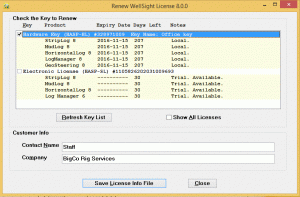
- Check the Key you want to renew. Note that even if you use a hardware key, your computer may also have an electronic license on it to support trial licenses. Regardless of which WellSight program(s) you install, there will be trial licenses for each product, in case you decide to try another product.
- Enter the name of the person who will receive the license update file as the contact name, and your company name.
- Click Save License Info File. A license info file (C2V) will be created on your desktop.
- Attach the license info file to an email and send it to info@WellSight.com.
- Contact WellSight to arrange payment for your license. WellSight will email you back a license file (V2C).
- When you receive this email, save the license file (V2C) to your Desktop.
- Close any WellSight programs that you have running.
- Double-click the license file to open it in the HASP Remote License Update (RUS) utility.
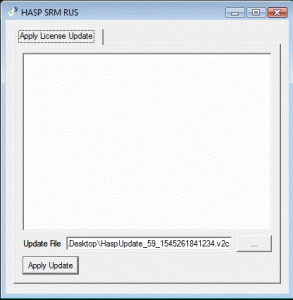
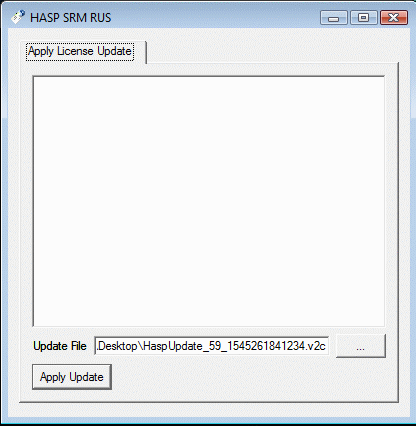
- Click “Apply Update” and your license will be updated.
- Once your license has been successfully updated, you can safely delete the license information file (C2V) and the license file (V2C) from your desktop.

Note: If for some reason you are unable to run the Renew License 8 tool, follow the directions below.
If for some reason you are unable to run the Renew License 8 tool, use the Collect License Info tool.
- If you are renewing a USB hardware key, ensure that it is connected to your computer.
- Run the Collect License Info tool from Programs/All Apps on the Start Menu or by searching Windows for “Collect License Info”.
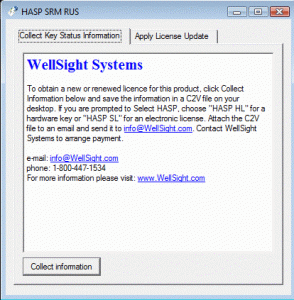
- Select the “Collect Key Status Information” tab.
- Click on “Collect Information”.
- You will be prompted for a location to save the key information. We suggest that you save it to your Desktop and name it with your name or your company’s name. E.g. “drillco.c2v” or “johndoe.c2v”.
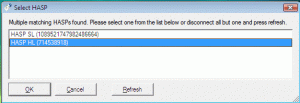
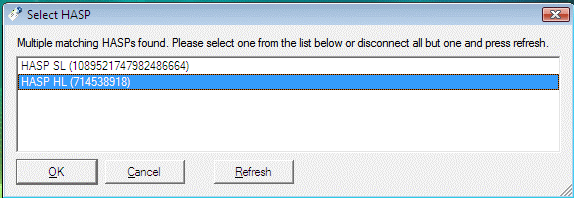
- You may see a Select HASP window. If you are renewing a hardware key, select the “HASP HL …” line and click OK. If you want to activate or renew an electronic license, select “HASP SL”.
- Now attach the key information file to an email and send it to info@wellsight.com.
- Contact WellSight to arrange payment for your license. WellSight will email you back a license file (V2C).
- When you receive this email, save the license file to your Desktop.
- Double-click the license file to open it in the remote license update utility.
- Select the “Apply License Update” tab.
- Click “Apply update” and your license will be updated, allowing you to run the product.
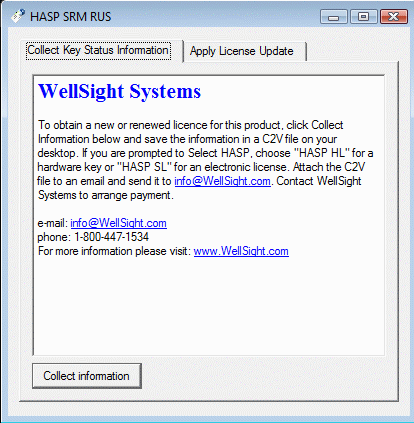
Once your license has been successfully updated, you can safely delete the key information file (C2V) and the license file (V2C) from your desktop.
You can easily check the status of your license in any WellSight product by selecting Help > About.
Several other tools for managing WellSight licenses can be found on the Windows Programs/Apps menu or by searching Windows for the tool’s name.
| Tool | Purpose |
| Renew License 8 | Display current license information. Create a license information file (C2V) to be sent to WellSight for renewing your license. |
| Admin Control Center | Display current license status and configure network licenses |
| HASP SRM Driver Status | Display current driver status |
| Uninstall HASP SRM Driver | Uninstall HASP driver |
| Install HASP SRM Driver | (Re-)Install HASP driver |
| Collect License Info | Generate C2V file for license renewal Note: This is an old tool. Use Renew License 8 instead. |
Updating Software
| Message | Possible Causes | Solutions (See “How To …” sections below) |
| There are only 30 (or fewer) days remaining on your license |
|
|
| Renew License won’t run |
|
|
| Error 7 HASP Key not found |
|
If you have a hardware key, ensure that it is properly connected
|
| Error 14 HASP driver not found |
|
|
| Error 25 Clock has no power |
|
|
| Error 31 Feature not found |
|
|
| Error 33 Communication error |
|
|
| Error 38 Too many users |
|
|
| Error 39 Broken session |
|
|
| Error 41 Feature expired |
|
|
| Error 51 Virtual machine detected |
|
|
| Unable to starthardlock service |
|
|
Program updates are available regularly to licensed Version 8 customers. These include new features as well as fixes and support for new Windows versions.
You can update from earlier V8 versions without having to upgrade your license. In this case, install the new product version over the old one. There is no need to uninstall the old version. See Download and install the latest StarLog Version If you are updating from a version earlier than 8.0.0, see How do I upgrade to Version 8.8.0?An upgrade from a version earlier than 8.0.0 is a major upgrade. A new license is required for V8 and there may be an upgrade fee. To perform a major upgrade:
- Backup any strip log files and other data files that you have created in the installation directory.
- Uninstall the old version. While this is not necessary, it is recommended unless you need to use both versions. If you don’t uninstall the old version, then both versions will be available.
- Download and install the new version. You can try out the new version using its one-time trial license
- Follow the procedure to renew your license to obtain the required V8 license.
Network Support
Yes. Any of the StarLog products and the WellSight LogManager can be run over a network using a network license. The license allows a maximum number of workstations to use the product at one time. This licensing method is sometimes referred to as “floating seat” licensing because a single license can “float” from one workstation to another. This affords a greater level of flexibility for your corporation and requires fewer licenses to enable all of your users.
Contact WellSight for network license pricing information.
- Install the product on the license server, selecting the Network setup type.
- Obtain a network license from WellSight using the same procedure as for stand-alone licenses, except specifying that you require a network license and for how many floating seats.
- Optional: use the Admin Control Center to configure which clients can access this server.
- Ensure that the program runs correctly directly on the server before installing it on network client workstations.
- Install the product on the client workstation, selecting the Network setup type.
- No license or further configuration is required as long as the client workstation can access the network license server.
- Optional: use the Admin Control Center to configure which server(s) this client can access.
- Any computer on your network that is running a supported version of Windows can be the network license server.
- A network license server requires a special network license from WellSight.
- The network license can be either a red USB network hardware key or an electronic license.
- The network license server can be a Virtual Machine, but only when using a network hardware key.
- There can be more than one network license server. In which case, you can configure which workstations use which network license server, or you can allow the WellSight program(s) to automatically locate a server at run-time.
- You can use the Admin Control Center to configure and manage servers and clients.
Choose Admin Control Center from the Programs / All Apps menu. The Admin Control Center (ACC) is a browser-based application that you use to monitor and administer your WellSight license(s).
The left-hand sidebar contains a menu of functions. Some of the most useful are listed below. But first, it is helpful to know some of the terms that ACC uses.
Definitions
| Term | Definition |
| Admin Control Center (ACC) | A web browser-based application that you use to monitor and administer your WellSight license(s). |
| HASP Key | Either a hardware key or an electronic key. A HASP key is a container that holds product licenses. |
| HASP-HL | A USB hardware key |
| HASP-SL | An electronic key |
| Product | In ACC, all WellSight licenses appear under a single “Product” called “WellSight Systems”. |
| Feature | An individual WellSight license. Each license applies to a single WellSight program. |
| Session | A running instance of a program. |
HASP Keys, Products, Features, and Sessions form a hierarchy. Each HASP Key contains 1 or more Products. Each Product has 1 or more Features, etc.
Useful ACC Functions
| Function | Purpose |
| HASP Keys | List the keys that are accessible from your computer. Key types include: hardware keys, electronic licenses, and network keys. |
| Products | In ACC, all WellSight licenses appear under a single “Product” called “WellSight Systems”. This product has ID 50. |
| Features | List of licenses for WellSight programs along with their expiry dates. You can list the licenses on a single key by navigating through the appropriate HASP Key and Product. |
| Sessions | List of running program sessions visible to your computer. You can limit the list of Sessions by navigating through the HASP Key, Product, and Feature. |
| Configuration | Used to optimize or limit how clients access license servers. |
| Diagnostics | Display a diagnostic report. See below. |
| Help | Detailed usage information |
Check Your License Expiry Date(s)
- Launch the ACC and click HASP Keys
- If you have a hardware key, click Products beside the listed HASP HL.
- If you have an electronic license, click Products beside the listed HASP SL.
- Locate the WellSight Product (50) and click Features beside it.
- The Features list shows the expiry date for your license(s).
Generate a Diagnostic Report
- Launch the ACC and click Diagnostics
- At the bottom of the page, click Generate Report
- This creates a web page of diagnostic information.
- In your browser, select File > Save As to save the web page as an HTML document.
- Attach the HTML document to an email and send it to WellSight.
Configure the License Server
- Launch the ACC and click Configuration
- Top Menu – Select Access from Remote Clients tab
- Ensure the following item is checked: Allow Access from Remote Clients
- Click Submit
Configure Client Machines
- Launch the ACC and click Configuration
- Top Menu – Select Access to Remote License Managers tab
- Ensure the following item is checked: Allow Access to Remote Licenses
- Under Specify Search Parameters – Enter the IP address of the license server
- Click Submit
Tip: You can replicate the configuration to several client workstations.
- Configure the first workstation using Admin Control Center.
- Copy the configuration file from the first workstation. The location of the configuration file can be found at the bottom of the Configuration page in the ACC. Typically it is: C://Program Files (x86)/Common Files/Aladdin /Shared/HASP/hasplm.ini
- On each workstation:
- Stop the HASP License Manager service using the Services applet (search for “Services” in Windows).
- Paste the configuration file from the first workstation to the appropriate location on the workstation.
- Start the HASP License Manager service
Yes. You can run WellSight products remotely on Windows Server, Citrix, or another Terminal Server using Remote Desktop. Doing so requires a network license on the server. Each terminal server / remote desktop instance uses 1 seat from the network license.
Printing and Plotting
WellSight LogManager supports plotting to HP DesignJet and compatible plotters. The plotter must accept data in HP-RTL format. This is a subset of the HP-GL format and is supported by HP DesignJet plotters as well as some other makes of plotter.
The plotting feature bypasses the Windows driver for the plotter. This is necessary to get around page size limitations. As a result, the settings in the driver have no affect on log plotting (e.g. margins, rotation, scaling, color control, print quality). However, you can control many of these settings directly on the control panel of most plotters.
- If you are using a plotter (e.g. an HP DesignJet) you will need to use the WellSight LogManager in order to plot your log.
- If you are having trouble getting your log to print continuously with no break between pages view this FAQ
- If you are trying to print a horizontal log, first verify whether you can print a vertical log.
- Turn your computer and printer off for a minute then turn them on.
- Exit all programs except for WellSight’s.
- Update to the latest printer driver from the printer manufacturer’s web site.
- See if you can print:
- anything from a standard Windows program (e.g. Notepad, Paint)
- other log files (e.g. one of WSI’s sample logs)
- to another printer
- to the same printer from another computer
- at a different quality or dots-per-inch resolution
- with color turned on or off
- your log file with an earlier version of WSI’s program
- Try different printer emulation modes if your printer supports them
If you are having trouble getting your log to print continuously with no break between pages, check the printer setup for “scaling”, “page length” or “margin” settings. Be sure that the page length is 11″ and the top and bottom margins are zero, or as close as possible to zero. Set scaling to “none” or “100%”. Some printers require you to choose “banner” mode both in the printer setup dialog and on the printer itself.
If you have found a printer that works well with our products, please send us the make and model so we can share the information with others. If you are the first to identify a particular printer model, we’ll reward you with an extra 3 months on your license for one product.
The following printers have either been tested by WellSight or have been recommended by our customers. They each support continuous printing of WellSight logs. If a printer is no longer available in stores, you may try buying directly from the manufacturer’s website, or looking for a pre-owned printer through, e.g., eBay.
Notice (2013-01-17): WellSight Systems is not aware of any general purpose desktop printers currently available from the name brand manufacturers (Canon, Dell, Epson, HP, Lexmark) that support continuous feed printing. Special-purpose log printers are available (see the table below). There are also log printing services available in some areas. The WellSight Log Manager supports roller-feed plotters, such as HP DesignJets. |
| Printer | Notes |
iSys – The Imaging Systems Group Inc., Printers and Plotters Updated: June 2010 | iSys specializes in continuous color and direct thermal plotters. Available models include:
iSys drivers support Windows 2000, Windows XP, Windows Vista, and Windows 7. All drivers support both 32 and 64 bit versions. iSys also supplies consumables through iSys Media. For more information or to request a quote contact stephanie_jensen@isys-group.com. |
| NeuraLaserColor II Printer by Neuralog, Inc. |
|
| NeuraJet17 Ink Jet Printer by Neuralog, Inc. |
|
| WGT color 8.5 by Well Green Tech www.wellgreentech.com |
|
When shopping for a printer to use with your WellSight Systems product, take the following into consideration:
- Do you require continuous feed (either tractor feed or pressure feed)?
- What is the maximum length of log you will be printing (some printers support continuous feed printing, but with a maximum number of pages)?
- Do you require color?
- Will you also be using the printer to print black and white documents? If so, look for a printer that has a separate black ink cartridge to reduce operating costs.
- Will you be moving the printer around a lot, e.g. to the field? If so, be sure that the printer is rugged enough.
- Before you buy, try it out. Take your notebook computer or a copy of the software to the store and try printing a sample log. Check for the speed, noise, ruggedness, and quality of output.
- Do not automatically buy the cheapest printer. First determine what the operating costs will be, particularly ink cartridges.
- Be sure the printer has drivers for your version of Windows. You can download the latest driver from the manufacturer’s website.
User Tips
StarLog uses a simple text file called ABBREV.TXT as the Geological Lexicon. It is located in the Program Data folder, usually C:\ProgramData\WellSight Systems. Note that C:\ProgramData is a hidden folder so you must type “C:\ProgramData” into Windows File Explorer to open it.
However there is a shortcut on the Programs/Apps menu that opens the Geological Lexicon file in notepad. You can also find this shortcut by searching for “Geological Lexicon” in Windows.
It is easy to add a reference line in your curve track at zero or any other value for that matter. Simply add a curve in Layout Designer with no units and a space character for its name, i.e. ” “. Now Edit Curve Data, select the new (unnamed) curve and click Power Edit. Specify your log’s entire depth range and set the value to zero (or whatever). You may need to adjust the curve scale for the reference line and you can edit the line’s thickness, color and other properties as needed.
Currently, only the first 7 curves can be displayed correctly in the legend of the Track Header. This limitation may be removed in a future release. In HorizontalLog, a work-around for this problem that may work for you is to make the track wider.
A similar problem in HorizontalLog is that if you have too many curves with separate scales, the scale names and values will overlap. If all the curves have the same scale, the solution is to use one set of scales for all curves. In Layout Designer, uncheck “Separate Scales” for the Curve Layer.
Our recommendation is to use PDF to view logs on portable devices.
To perform curve conversions beyond what the Power Data Entry dialog supports, simply export your curve data to a .DAT file (File menu > Export > Curve Data), open it in Excel or another spreadsheet program, perform the conversion there, save the modified data, then re-import the data into StarLog (File menu > Import > CurveData).
You can use File > Export > Log Image to generate a TIFF or JPEG image file which you can then preview in any image viewing program, such as Windows Picture and Fax Viewer.
You can also print your log to a PDF file.
Only one data value can be pasted at a time. However, you can easily import Data Curve or Survey data from a comma- or TAB-delimited ASCII file. See topic “Import” in the help system.
There are several printer drivers, some free, that will generate a PDF file when you print them. Search the web for “PDF printer driver”.
Often, curve and survey data are provided in an ASCII (plain text) file. When importing ASCII files, StarLog 8 lets you select the column headings and use them to identify data columns. However, if there is additional header and footer text in the file, this can prevent the file from being imported. In order to import these files, remove this extra text using notepad or another text editor.
If you want to calculate net pay, from Gamma Ray for example, you can temporarily change your scale so the maximum GR reading is one full deflection of the curve (0 to 45 API unit).
Then simply count and add up the meters in the interval with no cross hatching, and you have your net pay. Now switch the GR scale back to the standard 0 to 150 API units.
If you want to create a lithology bed less than the standard interval (e.g. 0.5 m or 2 ft at 1:240), simply place several stringer symbols side by side.
Here is a solution that was provided by one of our customers that may work for you if you are also having difficulty with one of these computers.
MSI laptops will run WellSight programs just fine with a small amount of configuration, and I wanted to inform you of this solution so that you can pass it along when requested.
The problem that I have seen is interference from a program called “Nahimic” that is usually bundled with MSI laptops, and is usually set to run on startup. If this program is turned off, WellSight will run normally with no problems.
It can be exited after startup or, by running “msconfig” and unchecking it under the startup tab, or it can be removed from startup entirely so that it only runs when explicitly started by the user.
Nahimic doesn’t need to be uninstalled, can be started and run if the user wishes to use it when not using WellSight, and sound will still work perfectly fine without it running.
Hopefully this info will help you to provide this solution to clients when they approach you regarding MSI laptops in the future.